Langmeier Backup FAQ
Langmeier Backup: Restore disk images
In this article we will show you how to restore a disk image with Langmeier Backup.
Since image recovery is a very important backup software function for our customers, we have developed it further and added a new feature: you can also perform an automatic system startup repair with the recovery medium. This is particularly valuable when restoring to different hardware or if the start partition was excluded during the backup.
Tip: If you have already created a rescue medium with Langmeier Backup and have it to hand, then go directly to the step "Start computer with the rescue medium".
Proceed as follows:
First create a new rescue medium. In the Langmeier Backup main window, click on "Tools" and then on "Create rescue medium":

When creating the rescue medium, select in the first step between USB stick, ISO file (for recovery in a virtual environment) or CD (for older physical servers) and create the rescue medium.
You can find the exact procedure for creating a rescue medium in this article here.
Start the computer with the rescue medium
Now start the computer with the newly created rescue medium. As soon as Langmeier Backup is started in the boot environment, you will immediately have the option of restoring a disk image.
If you have problems starting the computer in the rescue medium, read this article here.

In the next step, select the image you want to restore. Select files of type .lmbImage to restore individual partitions and files of type .lmbDisk to restore a complete disk including its backed up partitions. In the latter case, Langmeier Backup will also restore the original partition scheme for you.
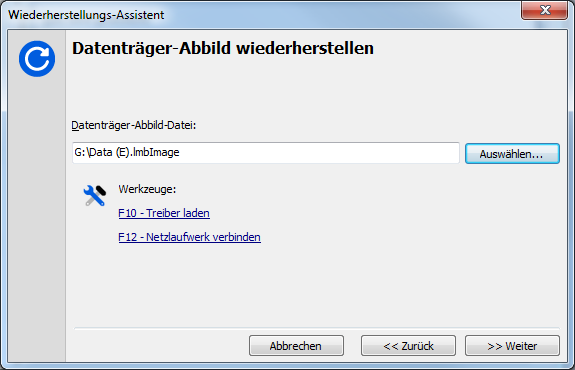
In the next step, select which partition or hard disk you want to restore to.
In the last step, select whether you want to prepare the newly restored operating system for startup. This creates a boot partition if you have not backed it up - or allows you to restore to different hardware.
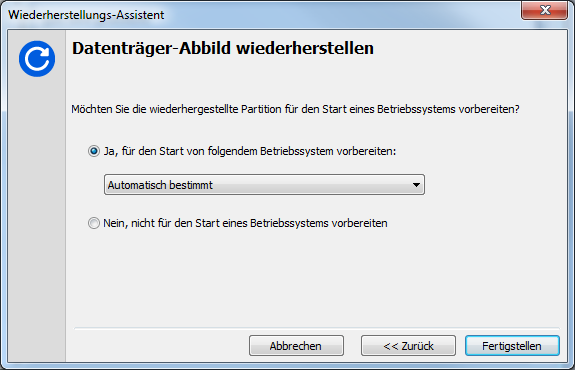
We recommend selecting the "Automatically determined" option here.
You then need to confirm that you want to perform the restore and you are ready to go. Wait until the restore is finished and restart your PC.


 Brochure