Langmeier Backup FAQ
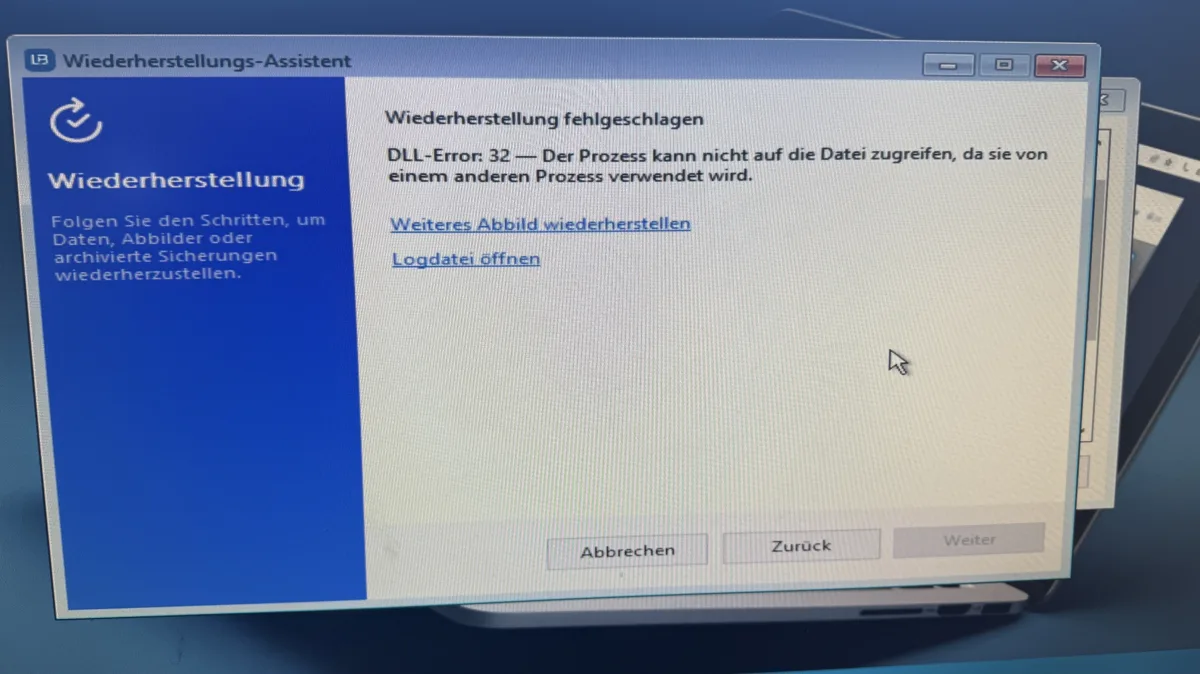
Langmeier Backup: Restoring an entire disk fails on the rescue medium with DLL error 32 - "The process cannot access the file because it is being used by another process"
I want to restore a disk image using the rescue media. Booting into the rescue media works, but during the restore I get an error message "DLL Error: 32" and a reference to the log file. How do I get the disk image onto the PC? What isn't working?
A hardware defect in your hard drive is very unlikely here. The “DLL Error 32” stands for the Windows system error “The process cannot access the file because it is being used by another process.”
This has a few known causes, which we'll get to the bottom of in this article.
The “DLL Error: 32” means that Windows is still blocking exclusive access to the target hard drive or the backup file. This is often caused by remnants of the previous Windows session (Fast Startup/Hibernate) or a second open instance of the wizard, other open command prompt windows, or even a File Explorer window open in the background that still holds a reference to the drive.
So as a first step, make sure to close all other windows running in the background and try again.
1. The most common causes of error 32
The most common causes of error 32 when restoring a disk image are:
- Active access by the previous Windows session (Hibernate / Fast Startup): If Windows was not fully shut down before booting from the rescue media, the “hiberfil.sys” file remains active and locks exclusive access to the partition.
- Parallel processes or antivirus scanners: A second instance of the program, an open File Explorer window, or an antivirus scanner holds an open handle on the backup file (*.lmbImage or *.lmbDisk) or the target drive.
- Encryption (BitLocker): If the target drive is still protected or locked by BitLocker, the system denies write access at the partition level.
2. The solutions
The following solutions are available:
- Force a full shutdown: Before starting the rescue media, shut Windows down completely (e.g., via
shutdown /s /f /t 0 or Shift + Shut down) so that all file locks and the Fast Startup cache are cleared.
- Clean the target drive in WinPE with diskpart: If the restore from the boot media fails due to a volume lock, we recommend using the command prompt (diskpart → select disk X → clean, see below) to completely remove all existing partitions, BitLocker remnants, and locks on the target disk before restarting the recovery.
Here’s how to release the lock directly in the rescue media:
- Close all open windows: Close all windows of the recovery wizard.
- Open the command prompt: Press Shift + F10 on your keyboard (alternatively, open the command prompt via the tools in the rescue menu).
- Clean the target hard drive: Enter the following commands one after another and confirm each with Enter:
diskpartlist disk (check the storage size to determine which number your internal system hard drive has – usually disk 0)select disk 0 (please enter the number of your internal hard drive here – be careful: do not select the USB stick or the backup drive!)clean (deletes all old partitions and releases all locks)exit
- Make the backup archive available locally on a separate drive: If the archive is located on a network drive or on the same disk, we recommend copying the backup to a separate local USB hard drive and closing all other windows before restoring.


 Brochure